How to organize a movie library on a Mac (no server needed)
Organize your Mac movie and TV show library without running a 24/7 server. Learn folder structures, S01E01 naming, batch renaming, and local player tools.
In short
- Separate movies and TV shows into clean folder hierarchies with Title (Year) and S01E02 naming.
- Use macOS Finder's native Batch Rename tool to clean messy filenames in seconds without third-party utilities.
- Place subtitles in the same folder with matching filenames so players load them automatically.
- A local player with a library, like MacLC, shows your folders with artwork and resume points, with no server running in the background.
On this page
- Why should you avoid running a home media server on a Mac?
- What folder structure works best for movies and TV shows?
- How should you name movies and TV episodes for clean indexing?
- How do you batch rename files using macOS Finder?
- How should you format an external drive for your media collection?
- Which Mac media players provide a local library without a server?
- How should you maintain your local library over time?
You do not need to configure a complex media server or pay monthly subscription fees to enjoy an organized movie and television library on your Mac. By adopting a standardized folder hierarchy and consistent file-naming rules, your media collection remains tidy, portable, and immediately recognizable by modern Mac video players.
Many guides assume that collecting movies requires running a dedicated server in the background. For people who watch films directly on their Mac laptop or desktop, server software adds complexity, runs in the background all day, and can take gigabytes of disk space for thumbnails and artwork. A local, folder-based setup gives you complete control over your files while keeping your computer fast and quiet.
Diagram
Recommended media folder hierarchy
- Media
- Movies
- Sintel (2010)
- Sintel (2010).mkv
- Sintel (2010).en.srt
- Tears of Steel (2012)
- Tears of Steel (2012).mp4
- TV Shows
- Cosmos (1980)
- Season 01
- Cosmos S01E01 The Shores of the Cosmic Ocean.mkv
- Cosmos S01E02 One Voice in the Cosmic Fugue.mkv
Why should you avoid running a home media server on a Mac?
Media servers like Plex, Jellyfin, and Emby are engineered for multi-device network streaming. They shine when you need to transcode high-bitrate files on the fly and deliver them to smart TVs, gaming consoles, or smartphones outside your home.
When your goal is watching films on your Mac, running a 24/7 server background process causes several disadvantages:
- Background work: a server keeps running after you stop watching. Depending on its settings it watches folders for changes, downloads metadata and generates preview thumbnails, which costs CPU time and battery on a laptop.
- Storage: servers keep their own databases, and preview thumbnails for a large library can grow to many gigabytes on your internal drive.
- Accounts: some platforms, Plex among them, ask you to sign in to an online account.
A folder-based setup avoids all three. When you quit your player, nothing keeps running, and your storage holds your films rather than a server’s cache.
What folder structure works best for movies and TV shows?
The cornerstone of an organized library is separating standalone feature films from episodic series at the root level. Because movies and television shows follow distinct organizational logic, combining them in a single unorganized folder confuses media scrapers and makes manual navigation frustrating.
Create a parent directory named Media on your internal drive or external storage, and divide it into two primary folders:
Movies: Each movie should reside inside its own dedicated subfolder namedMovie Title (Year). Inside that folder, keep the primary video file (.mkv,.mp4, or.mov) along with any external subtitle files (.srt). Placing each film in its own folder prevents directory clutter when you have accompanying audio commentaries, subtitle tracks, or poster artwork.TV Shows: Television series require a two-tiered hierarchy. The first tier is the series folder namedShow Name (Year). Inside the series folder, create separate subfolders for each season, labeledSeason 01,Season 02, and so forth. Store the individual episode files inside their corresponding season folder.
It is the same layout Plex, Jellyfin, Kodi and Infuse document in their naming guides, so if you ever move to a media server or another player, your collection will be understood without reorganizing.
How should you name movies and TV episodes for clean indexing?
Automated library managers and desktop players rely on regular expression pattern matching to extract the title, release year, season, and episode numbers from your filenames. Using inconsistent naming causes files to appear as mismatched titles or unassigned episodes.
Follow these two universal naming conventions:
Movie naming convention
Format movie files as: Title (ReleaseYear).extension
Example: Inception (2010).mkv
Always include the release year in parentheses. The year differentiates remakes and similarly titled films, such as Dune (1984) versus Dune (2021), ensuring that metadata engines match the correct poster and cast details.
Television episode naming convention
Format television episodes as: Show Name S01E02 Episode Title.extension
Example: Cosmos S01E01 The Shores of the Cosmic Ocean.mkv
The critical element is the S01E01 token. The S represents the season number with a leading zero, and the E represents the episode number. Leading zeros (such as S01E02 rather than S1E2) are recommended because simple alphabetical sorting, used by many tools, puts E10 right after E1 and before E2. You can include the episode title after the episode number, but the SxxExx tag must be present.
Subtitle naming convention
To ensure your player loads subtitles automatically without requiring you to manually browse for files, place the subtitle file in the same folder as the video and give it the exact same base name, followed by an ISO 639-1 two-letter language code:
- Video:
Sintel (2010).mkv - English Subtitles:
Sintel (2010).en.srt - French Subtitles:
Sintel (2010).fr.srt
When named identically, modern desktop players match the subtitle file on launch and list it in the subtitle selection menu. For an in-depth breakdown of text encodings, embedded streams, and styling, read our complete guide to subtitles on Mac.
How do you batch rename files using macOS Finder?
You do not need to buy third-party renaming utilities to clean up messy filenames downloaded with scene tags, tracker labels, and codec hashes like .1080p.BluRay.x264-GROUP. macOS includes a batch renaming tool built directly into Finder, as detailed on Apple’s Mac Help page for renaming files.
To batch rename files in Finder:
- Select all the video files you wish to rename in a Finder window.
- Control-click (or right-click) the selected files and click “Rename…” from the contextual menu.
- In the drop-down menu at the top of the dialog, select “Replace Text”.
- In the “Find” field, type the text you want to remove, such as
.1080p.BluRay.x264-GROUP. - Leave the “Replace with” field empty, and click “Rename”. Finder strips that tag across every selected file simultaneously.
If you have downloaded a season of episodes with irregular numbers, you can renumber them cleanly:
- Make sure the episodes appear in the right order in the Finder window, then select episodes 1 to 9.
- Control-click and select “Rename…”.
- Choose “Format” from the drop-down menu.
- Set the name format to “Name and Index”, choose “after name” from the Where menu, enter
Show Name S01E0in the Custom Format box, and set “Start numbers at” to1. - Click “Rename”. Finder’s index has no leading zero, which is why the
0is part of the custom text. - Repeat for episodes 10 and later with
Show Name S01Eand “Start numbers at” set to10.
How should you format an external drive for your media collection?
High-definition 1080p and 4K video files consume substantial storage; a single 4K remux is often 40 to 80 GB. Storing your collection on an external USB-C hard drive or SSD protects your Mac’s internal drive from filling up.
When initializing an external drive in Disk Utility, choose your filesystem based on how you intend to use the drive:
- APFS (Apple File System): Choose APFS if you plan to connect the drive exclusively to Mac computers. APFS provides fast directory searches, robust journaling against power interruptions, and native metadata performance.
- ExFAT: Choose ExFAT if you need cross-platform flexibility, such as plugging the drive directly into a smart TV USB port, a Windows PC, or an Android media box. ExFAT supports individual files larger than 4 GB, unlike legacy FAT32. However, because ExFAT lacks filesystem journaling, always right-click the drive in Finder and select “Eject” before unplugging the cable to avoid filesystem corruption.
If an external hard drive makes playback pause while it spins up, turn off “Put hard disks to sleep when possible” in System Settings (Energy on desktop Macs, Battery › Options on laptops).
Which Mac media players provide a local library without a server?
Once your files and folders are structured cleanly, you need a video player that can index them into a visual library.
QuickTime Player has no library at all: it opens one file at a time, and it won’t open MKV files. Commercial apps like Infuse fetch posters and track what you watched, with a paid Pro tier for some formats and features. You can read our detailed comparison of server versus local options in our analysis of Plex vs Jellyfin vs Infuse and our roundup of Infuse alternatives for Mac.
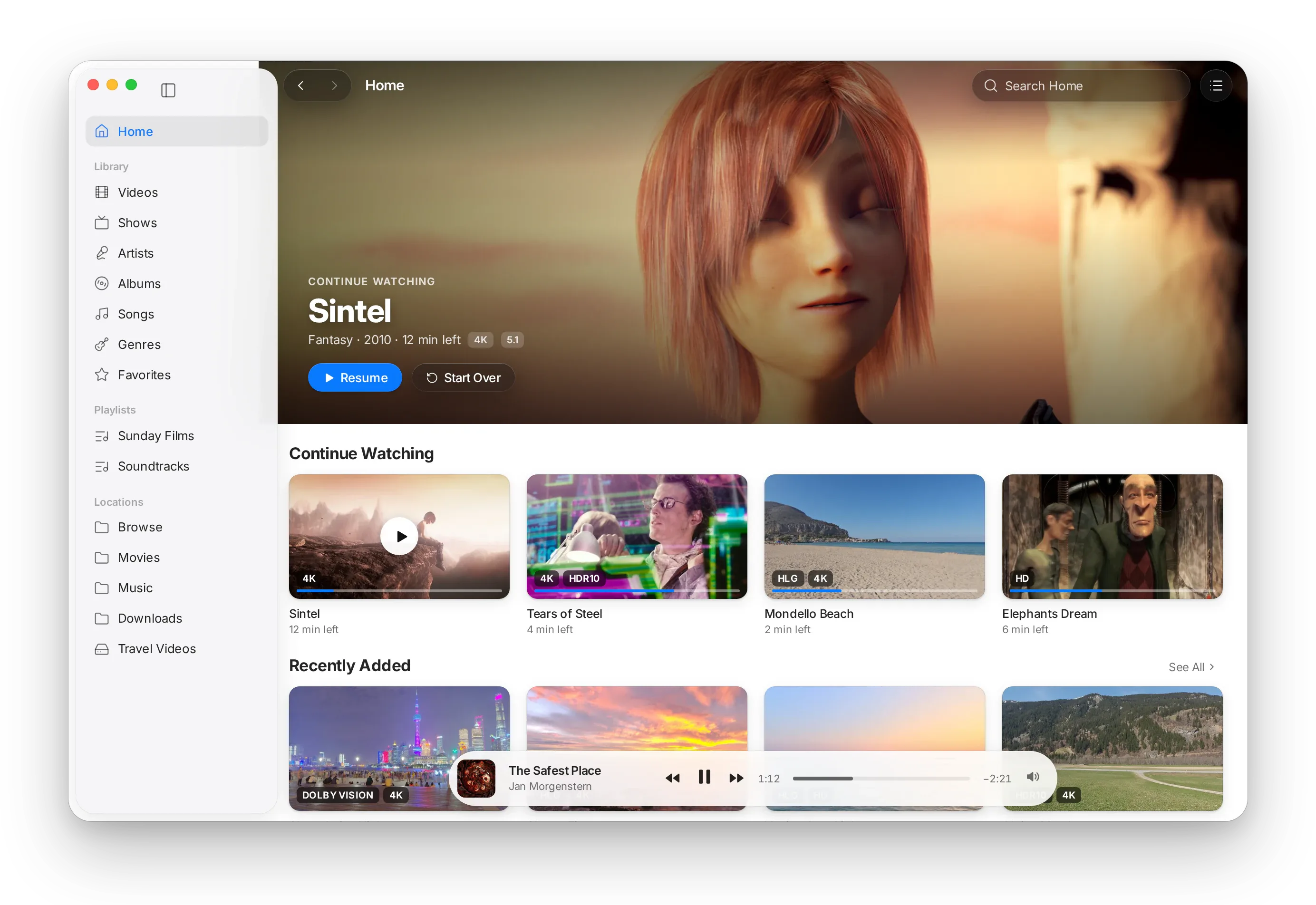
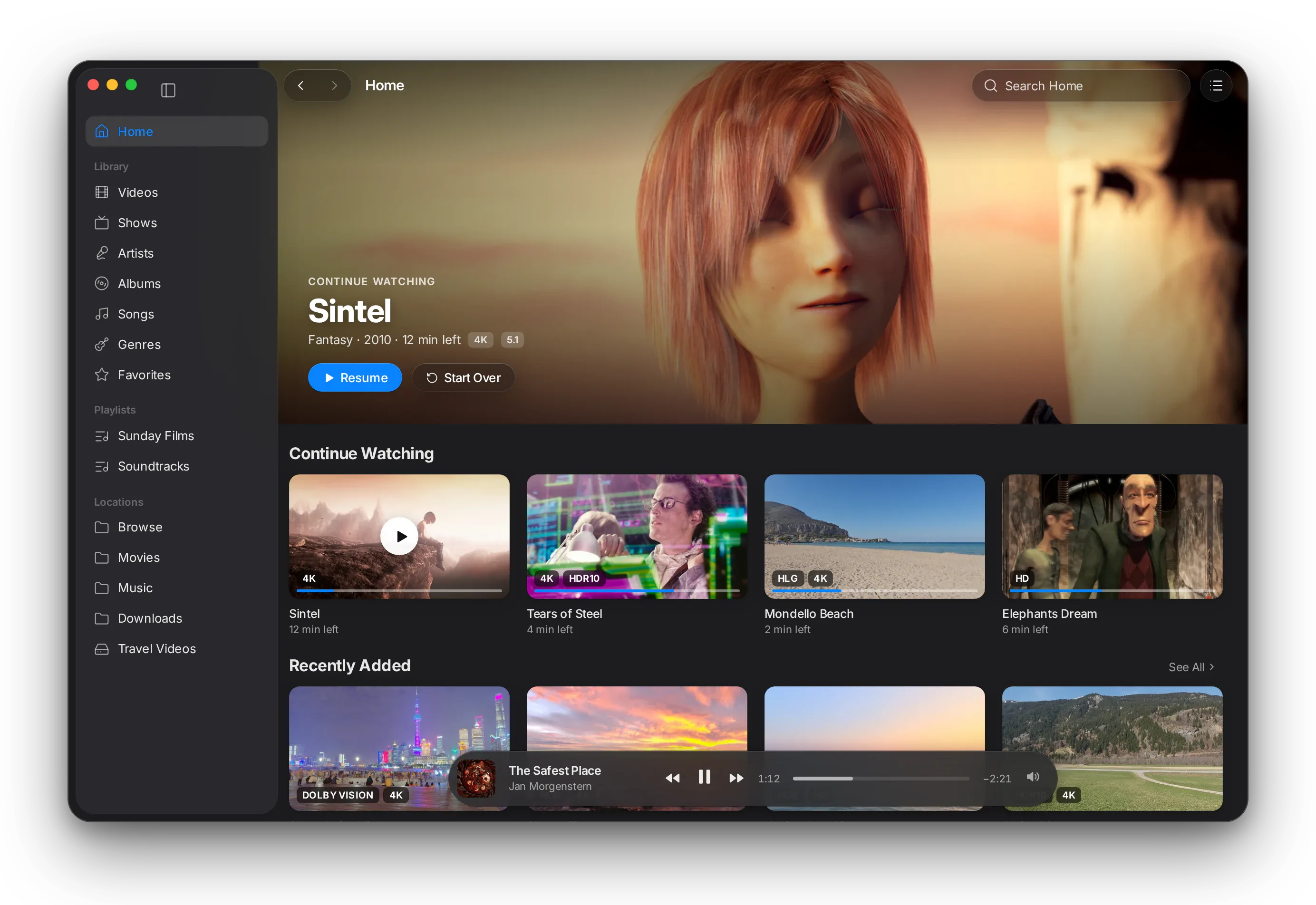
MacLC is a free, open-source player built for Apple Silicon Macs running macOS 26 Tahoe or later. There is no background server: its library (built on VideoLAN’s libmedialibrary) indexes your folders while the app is open.
To build your visual library:
- Open MacLC and add your
MoviesandTV Showsfolders to the library. The files are scanned where they are: never moved, renamed or copied. - Home fills with “Continue Watching” and “Recently Added” shelves.
- Shows recognizes
S01E02names and groups episodes by show and season; Up Next lists what comes next, with chapters. - Badges show 4K, HDR and Dolby Vision on each title, and films resume where you stopped (never at the credits).
Because the indexer runs locally on your Mac’s hardware, your viewing history and file lists never leave your computer, ensuring complete privacy.
How should you maintain your local library over time?
Maintaining a neat media library requires minimal effort if you apply good habits as soon as new files arrive:
- Rename files before moving them into your library folders. Running Finder’s batch rename tool on newly downloaded files takes only five seconds and ensures that your player indexes metadata accurately on the first scan.
- Keep subtitles beside the video file. Storing
.srtfiles alongside the video prevents missing subtitle tracks when moving folders across drives. - Maintain an independent backup. Large media libraries represent hours of careful curation. Use macOS Time Machine or maintain a secondary external clone drive using a file sync tool so a hardware drive failure never costs you your collection.
Once your folders are tidy, download MacLC to see them as a library: free, for Apple Silicon Macs.
Questions people ask
Do I need to run a Plex or Jellyfin server to organize movies on a Mac?
No. Media servers are useful if you stream to phones and smart TVs, but they run all the time in the background. For watching on the Mac itself, a player with a local library reads your folders directly and does nothing once you quit it.
What is the standard naming format for TV show episodes?
The universal convention is Show Name S01E02 Episode Title.ext. The S01 represents season one, while E02 represents episode two. Media indexers use this pattern to group episodes into seasons automatically.
How should I name external subtitle files?
Save the subtitle file in the same folder as the video and give it the identical filename before the extension, adding a language code: MovieName (2024).en.srt. Modern players automatically pair the subtitle track on launch.
Should I format my movie drive as APFS or ExFAT?
If you only use the drive with Macs, format it as APFS for superior file system reliability and metadata speed. If you need to plug the drive directly into a TV or Windows PC, format it as ExFAT.